Many of us live two chat lives. One for work, one for family. One for local friends, one for an overseas community. Switching phones to manage both is clunky. GB WhatsApp solves the problem with smooth Dual Account Management GB WhatsApp that runs two numbers inside the same app. Here is how to set it up, manage it well, and stay safe in 2026.
What Is Dual Account Management in GB WhatsApp
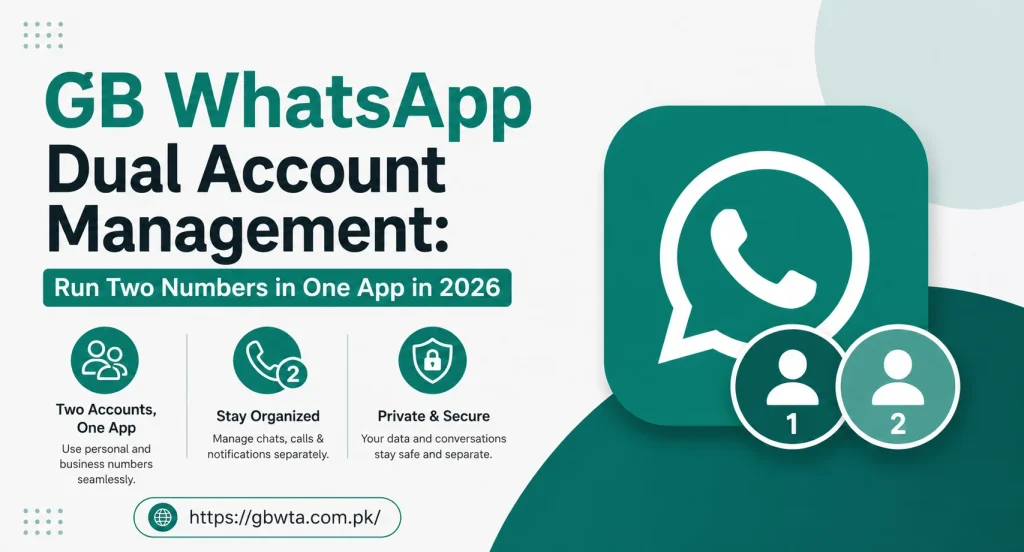
Dual Account Management is a built in feature that lets you sign in to two different phone numbers inside the same GB WhatsApp installation. Each number lives in its own space with its own chats, contacts, settings, and notifications. You can switch between the two with a single tap from the side menu.
It works on a single SIM phone or on a dual SIM phone, so you do not need any special hardware to enjoy the feature.
Why Dual Account Management Matters in 2026
The boundary between personal and professional life is blurrier than ever. Remote work, side hustles, freelance gigs, and global friendships all live inside the same phone. Two numbers are no longer a luxury, they are a need.
Here is what Dual Account Management helps you do.
- Keep work and personal chats fully separate without two phones
- Manage a side business number without paying for a second device
- Stay connected to overseas family on one number and local friends on the other
- Run a community group admin role without mixing it with private chats
- Test campaigns or chats on a second number before going live
What You Get With Each Account
Both accounts inside GB WhatsApp are full citizens. Nothing is limited on the second number.
| Feature | Account One | Account Two |
|---|---|---|
| Chat history | Full | Full |
| Status updates | Full | Full |
| Calls | Yes | Yes |
| Custom themes | Yes | Yes |
| Auto Reply rules | Yes | Yes |
| App Lock | Yes | Yes |
| Backup and restore | Yes | Yes |
You can treat each account as a complete WhatsApp experience.
How to Add a Second Number
The setup is straightforward.
- Open GB WhatsApp and tap the three dot menu
- Choose GB Settings and then Dual Account
- Tap Add Second Account
- Enter the phone number you want to add
- Verify it through SMS or a phone call
- Set a display name and avatar for the new account
- Pick a custom theme or notification sound if you want to tell the accounts apart
Once verified, both numbers show up in the side menu and you can switch any time.
How to Switch Between Accounts
Switching is fast and clean.
- Open the side menu by swiping from the left edge of the screen
- Tap the profile photo of the account you want to use
- GB WhatsApp reloads the chat list in a second
There is no need to log out and back in. The app keeps both sessions alive in the background.
Customizing Each Account Separately
Because the two accounts are isolated, you can fine tune each one to fit its role. A few useful customizations include:
- Different notification tones for work and personal chats
- Separate wallpapers and themes for each account
- Independent App Lock settings for each number
- Per account Auto Reply schedules and messages
- Custom last seen and online status rules per account
These small touches make the dual experience feel natural rather than cluttered.
Power User Tips for Running Two Numbers
A few habits can save you from confusion when you live with two accounts.
- Pick a distinct profile photo for each account so you never mix them up
- Set different notification sounds so you hear the difference without looking
- Use the per account wallpaper trick to recognize the active account instantly
- Disable Auto Reply on the personal account when you are on the work number
- Back up both accounts regularly so you never lose chats on either side
For the latest updates and known compatibility notes, https://gbwta.com.pk/ keeps a running changelog of every GB WhatsApp release.
Common Mistakes to Avoid
Dual account management is simple, but a few pitfalls can trip up first time users.
- Forgetting which account is active leads to accidental work messages from personal chats
- Using the same backup folder for both accounts can overwrite chat history
- Mixing contact lists makes it hard to find people later
- Running both accounts at full battery drain can shorten daily life on older phones
- Using the same Anti Ban settings for both can sometimes confuse the engine
A small amount of attention goes a long way toward a clean dual setup.
How Dual Account Management Compares to Clone Apps
You may have tried clone apps from the Play Store. Here is how the GB WhatsApp built in option compares.
| Feature | GB WhatsApp Dual Account | Clone Apps |
|---|---|---|
| Built in | Yes | No |
| Ads | None | Often yes |
| Stability | High | Medium |
| Battery impact | Low | Medium to high |
| Official updates | Same as GB WhatsApp | Delayed |
| Security | Local only | May upload data |
For most users, the built in path is faster, cleaner, and safer than third party clones.
Final Thoughts
Running two numbers on one phone should not feel like a juggling act. GB WhatsApp Dual Account Management makes it feel natural, with quick switching, separate settings, and full feature support on both numbers. In 2026, when most of us live at least two chat lives, this feature is one of the strongest reasons to make GB WhatsApp your everyday app.
Frequently Asked Questions
Can I add a third number inside GB WhatsApp? No, the built in feature supports two accounts per installation. For a third number, you would need a second device or a separate app.
Does running two accounts drain my battery faster? The extra battery use is small because both sessions share the same engine. On modern phones the impact is barely noticeable.
Can both accounts use the same custom theme? Yes, but you can also set a different theme per account if you want an instant visual cue about which number is active.
What happens if I uninstall GB WhatsApp? Both accounts and their chat history will be removed unless you back up each account separately before uninstalling.
Will my contacts know which number I am using during a chat? Only if you tell them. The number shown on their side always matches the account that sent the message.